Chat to update menu boards across New York - Fast & Simple.
No dashboard. No training. Just chat and publish.
- 12,000+ screens
- 99.9% uptime
- 5 minutes setup
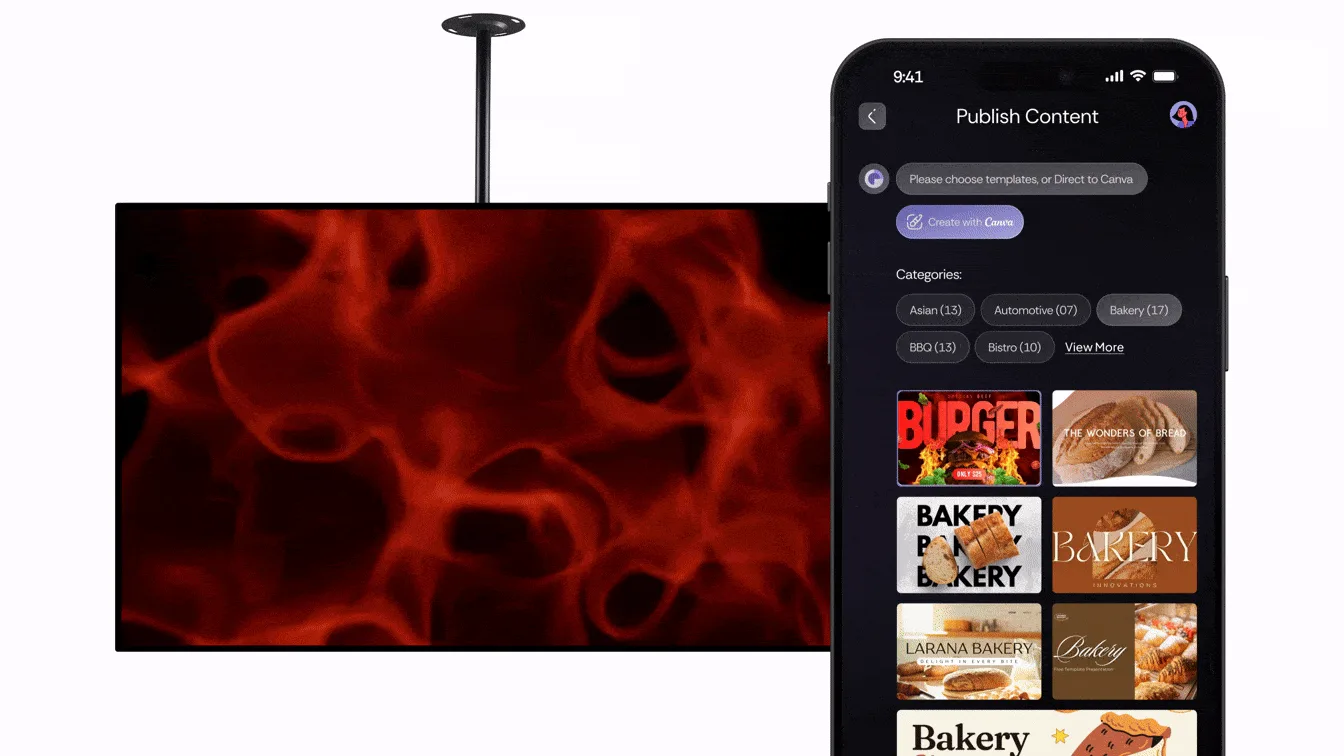
Key Features at a Glance

Chat to run it
Type a message. Your TVs update.
A: Just send a chat message. Pair, publish, swap, or monitor screens instantly—no training or console needed.
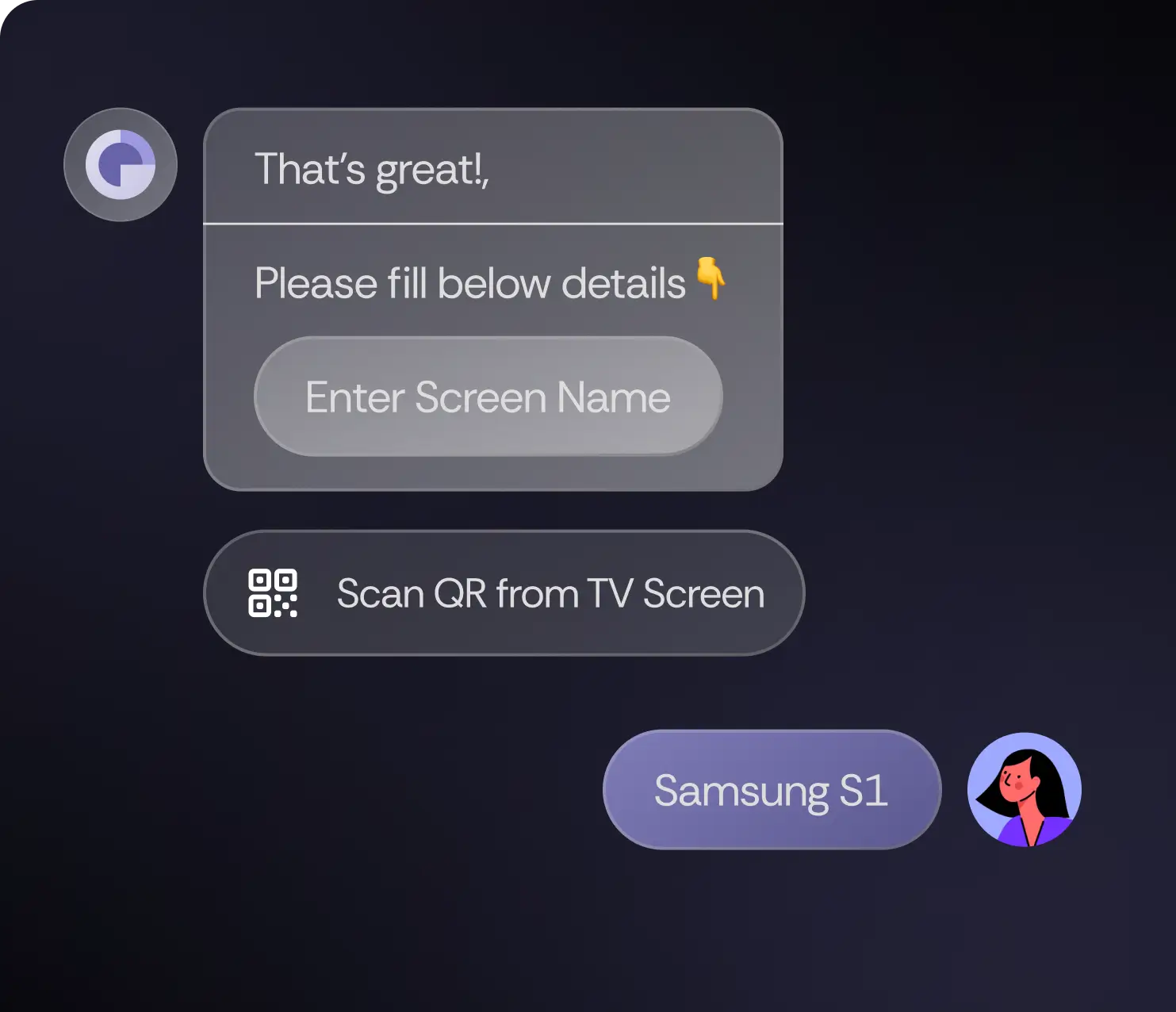

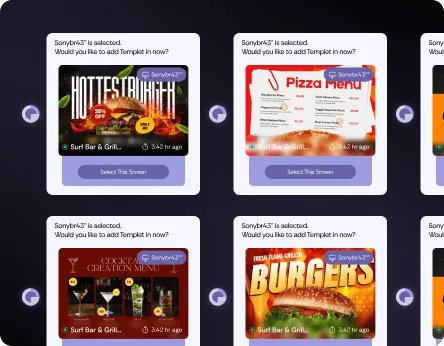
Per-screen control
Same design for all, or custom per TV.
A: Yes. Apply one design across all TVs or assign unique menus and promos per location or per screen.

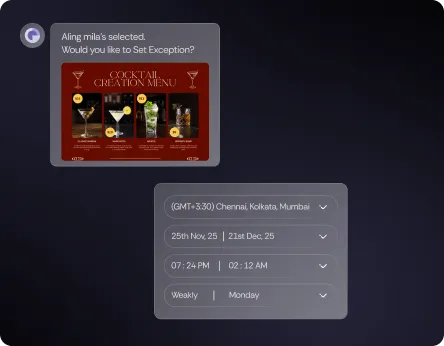
Dayparts
Breakfast → lunch → dinner switch by time.
A: Yes. Schedule menus for breakfast, lunch, dinner, or happy hour—switches happen by the clock without staff input.

Android & Google TV
Smart TVs and TV sticks work fine.
A: No. ScreenPulse runs on Android TVs, Google TVs, and TV sticks—no expensive boxes or custom players required.

Health & alerts
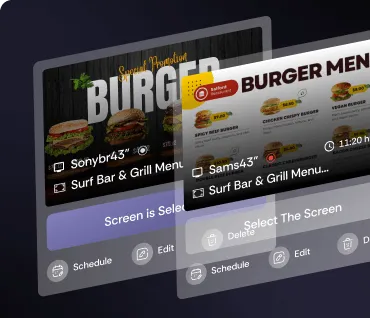
See what’s playing. Get a ping if a TV drops.
A: ScreenPulse shows what’s playing in real time and notifies you immediately if a TV goes offline or stops responding.

Kiosk-ready
Lock to one app if you want.
A: Yes. Lock screens to ScreenPulse only—ideal for fleets, self-service setups, or public-facing digital menu boards.
No card needed. 10-second signup
How it’s works
From setup to stage, and from audience engagement to post-event analytics, manage your entire experience seamlessly.
Step 1
Pair

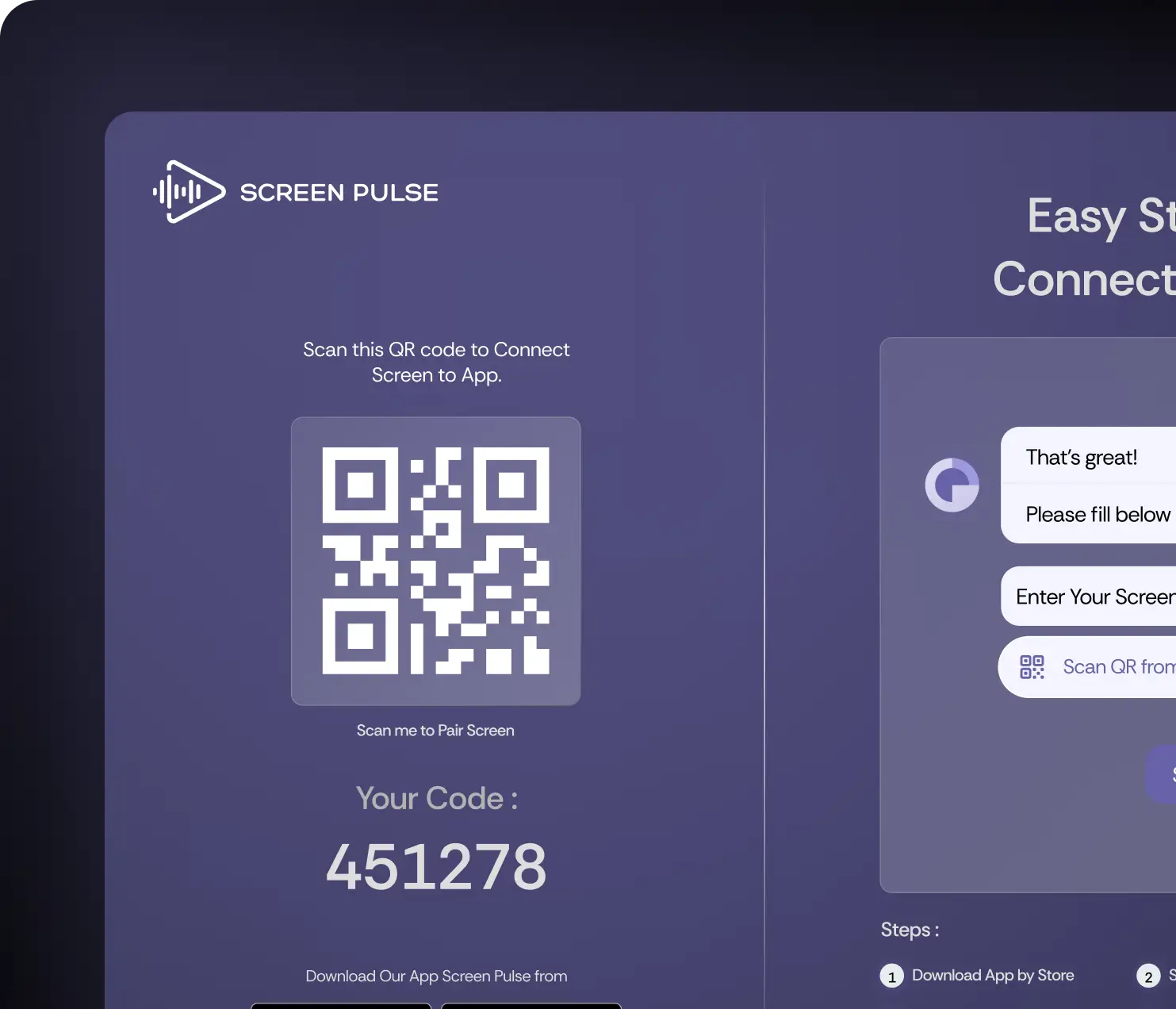
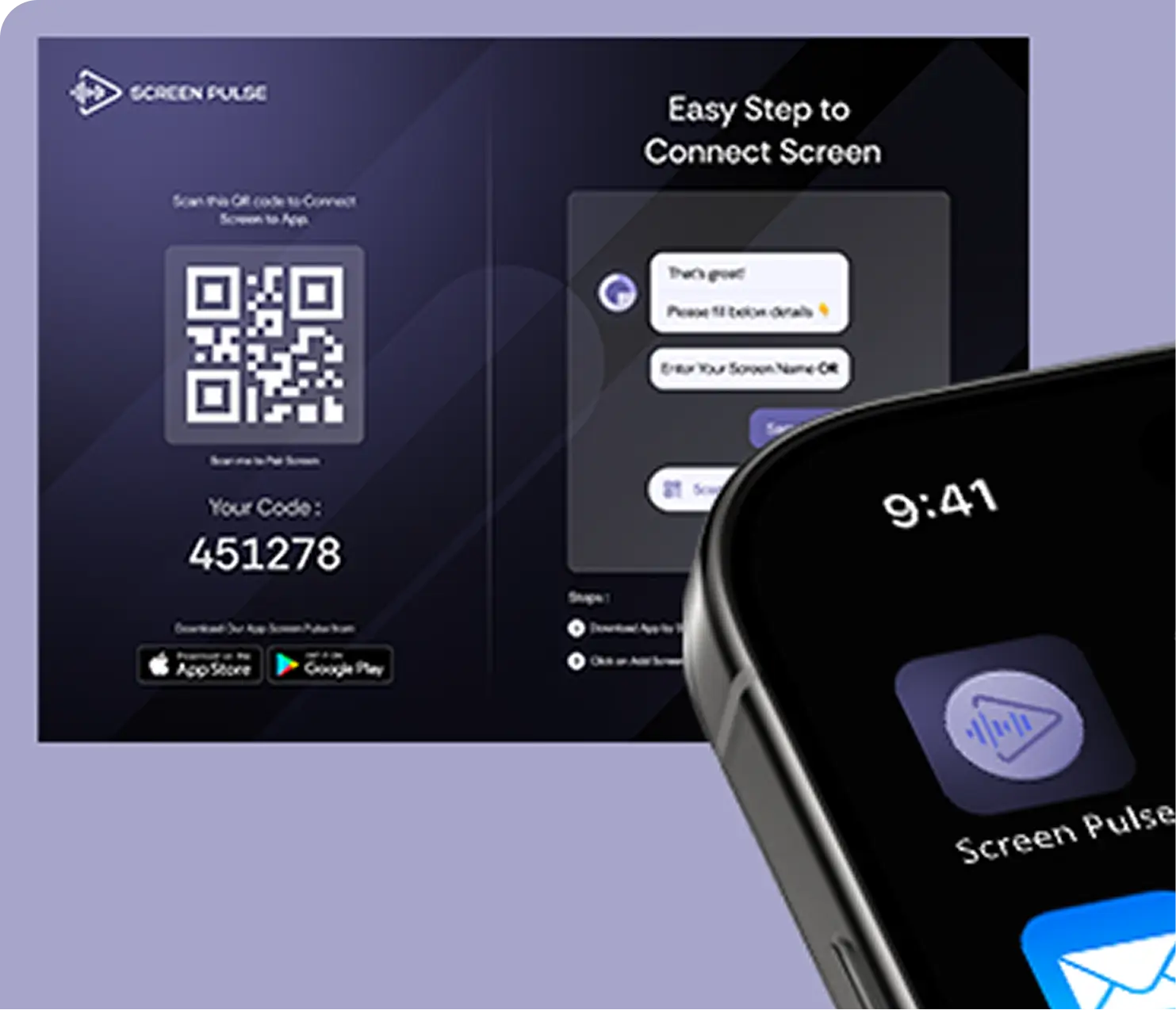
Install the ScreenPulse Player on Android/Google TV. A code shows. Send the code in chat. Done.
Step 2
Pick
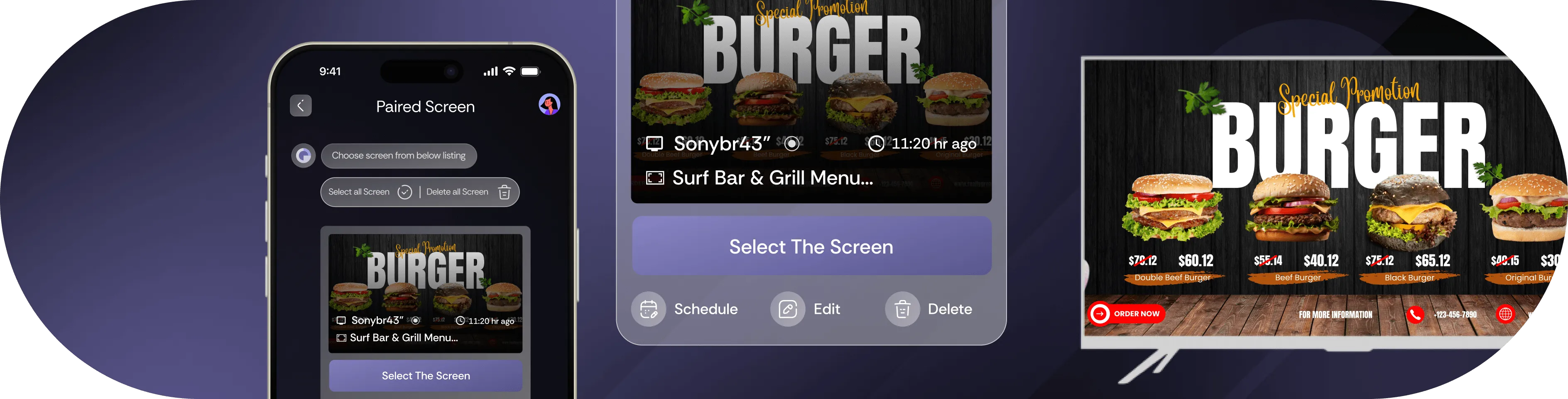
Choose a ready menu or promo. Edit items and prices in seconds.
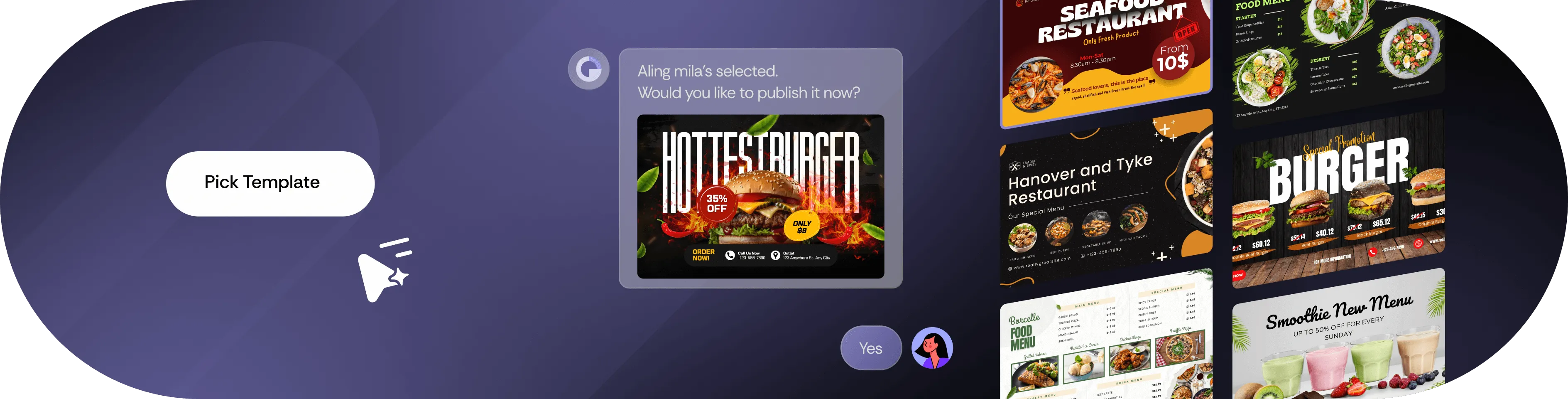
Step 3
Schedule
Set times for breakfast, lunch, dinner, happy hour.
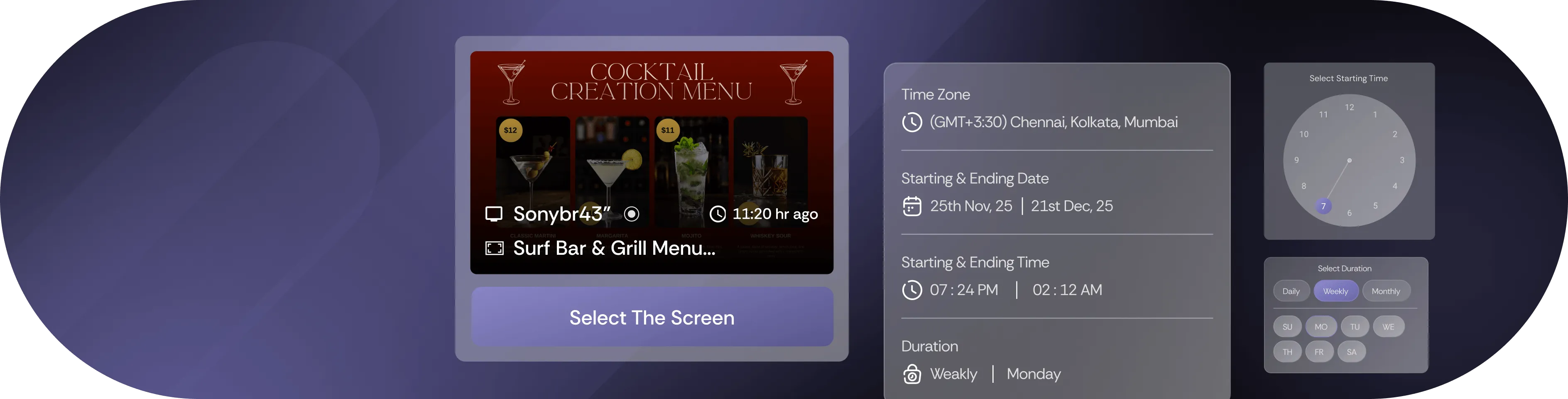
Step 4
Publish
Send to one TV or all. If a TV is offline, it updates later.
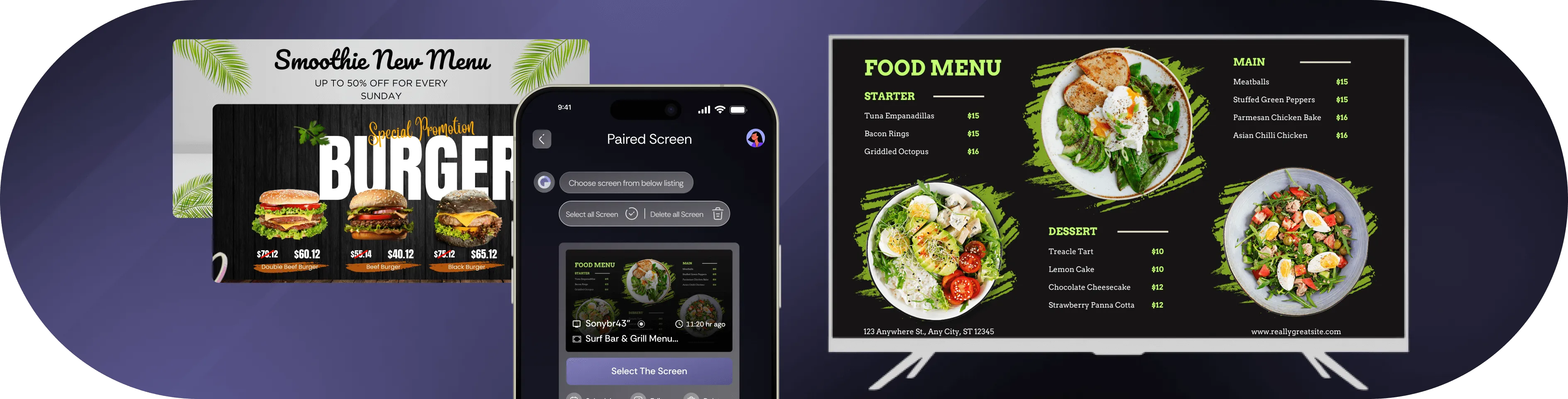
Why New York Restaurants Choose ScreenPulse

Rush hours move fast
Change prices or items mid-rush.

Morning crowd
Show breakfast at the right time.

Seasonal deals
Rotate summer specials without reprinting.

One store or many
Simple for small shops and big chains.

No training needed
Team learns it in minutes.
Other Menu Board Tools Vs ScreenPulse
From setup to stage, and from audience engagement to post-event analytics, manage your entire experience seamlessly.

|

|

|

|

|
|---|---|---|---|---|

Change menus for one or many stores with one sentence
|

|
|
|
|
|
Publish content from chat
|
|
|
|
|
|
One message tells you which TVs are OK or not
|

|
|
|
|
|
You type words; a ready menu board appears
|
|
|
|
|
|
Menus change by the clock: breakfast → lunch → dinner
|
|
|
|
|
|
TV keeps showing the menu even if Wi-Fi stops
|
|
|
|
|
| BOOK LIVE WALKTHROUGH |
Unlock Your Walkthrough
Join now. Takes 10 seconds. No card needed.

Thanks for submitting!
You’re officially on list to Screen Pulse. We’ll reach out to you soon with next steps.
Browse FAQs
No. Android/Google TVs and TV sticks work.
Yes. Choose “all screens” or pick screens one by one.
No. “Play now” is the default. You can add times later.
No problem. It keeps playing. It updates when it’s back.
About 5 minutes per screen.
Yes. We can pair your TVs and publish your first menu.